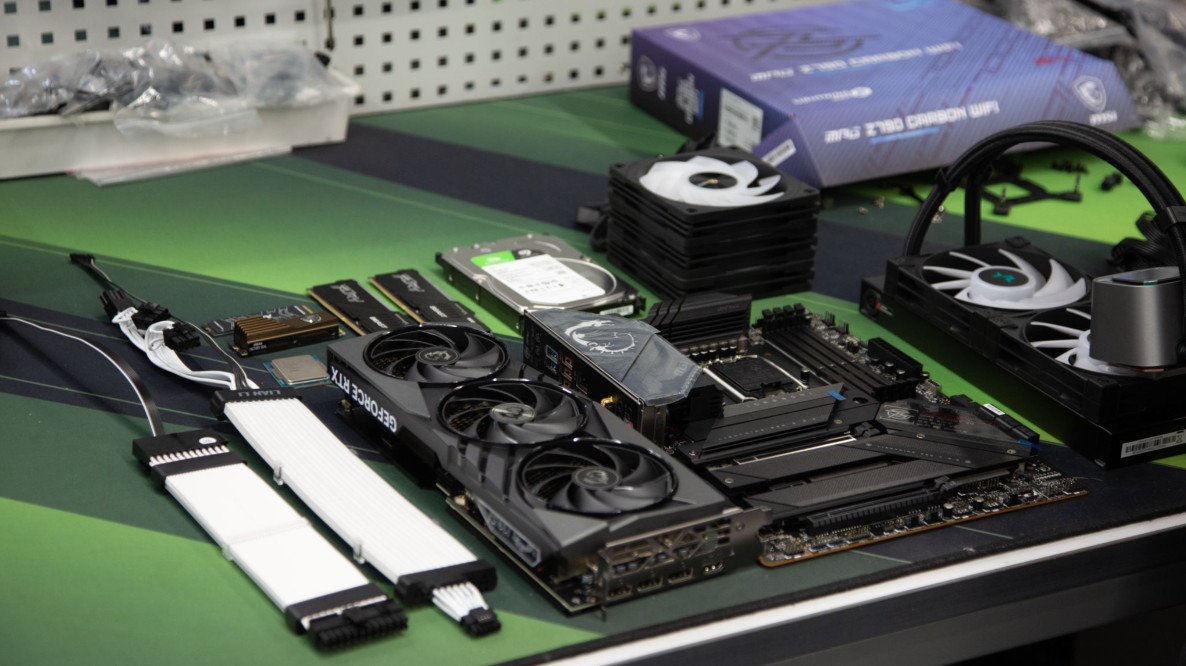

If your computer struggles with games or professional software, that doesn’t necessarily mean it’s time to buy a new one. In many cases, you can boost performance with a PC upgrade — replacing specific components with more powerful ones. Here’s how to do it right.
Start with Diagnostics: Every Upgrade Begins with Analysis
First, you need to identify what’s holding your system back. Download a hardware monitoring program — for example, MSI Afterburner. Configure it, run your usual games or software, and monitor the readings:
- If the GPU is at 100% load — it’s time to upgrade the graphics card.
- If the CPU load is between 50–100% — a new processor may be needed.
- If all RAM is in use — add more memory or upgrade to higher-capacity modules.
- If components are overheating — improve your cooling system.
GPU Upgrade: The Most Noticeable Boost for Gamers (and More)
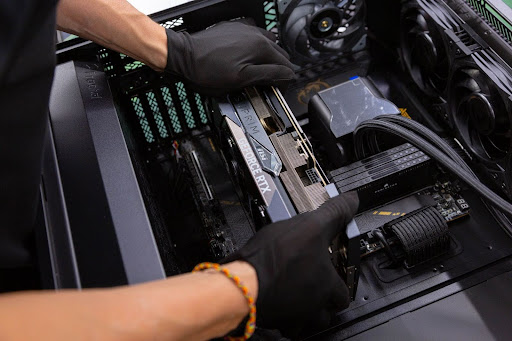
Upgrading your graphics card is one of the easiest upgrades — remove the old GPU and install the new one. Just make sure to check:
- Power supply capacity. Your PSU must be powerful enough to support the new GPU, or the system might shut down under load and degrade over time.
- PCI-E version compatibility. If your GPU uses PCI-E 5.0 but your motherboard supports only 4.0, expect a 5–15% drop in performance.
- Space inside the case. Check the maximum supported GPU length — large cards won’t fit in compact cases.
CPU Upgrade: A Change You’ll Feel Immediately
Upgrading the CPU is more involved. You may also need to replace the motherboard and cooling system. Check the following:
- Motherboard socket. If it’s outdated, modern CPUs won’t fit — you’ll need a new board.
- VRM zone. Weak power delivery components on the motherboard can overheat with high-end CPUs.
- Cooling system. Your old cooler may not handle the heat output of a modern processor. You may need a more powerful one.
RAM Upgrade: Simple, Affordable, Effective
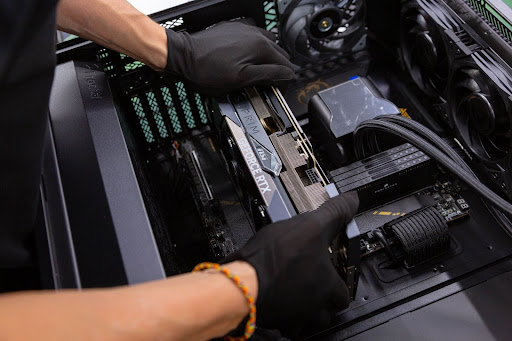
Adding more RAM is one of the most straightforward ways to speed up your system. Before buying, check:
- Type, frequency, and timings. Your new modules should match the existing ones for stable performance.
- Available RAM slots. If all slots are full, you’ll need to replace rather than add memory.
- Maximum supported capacity. Each motherboard supports a certain maximum RAM size — check the specs.
Cooling Upgrade: The Invisible Boost That Actually Works
When your CPU or GPU overheats, they throttle (reduce performance) to cool down, which lowers overall system speed. Before upgrading cooling, check:
- Fan mount locations and sizes. Buying the wrong size will leave you with a fan you can’t install.
- Fan headers on the motherboard. Too few fan connectors? You’ll need a hub or controller.
Conclusion: Upgrading Extends Your PC’s Life — and Saves You Money
Upgrading is a great alternative to buying a whole new PC. These are the main components you can (and should) upgrade over time:
- CPU
- GPU
- Motherboard (in some cases)
- RAM
- Cooling system
If you’d rather not dive into the technical analysis and component matching yourself, leave it to the professionals. Expert technicians can inspect your system, run diagnostics, and suggest the most effective performance upgrades — saving you time, money, and frustration.